 BrickBuilder
AI and LEGO
How to use AI with BrickLink Studio: the BrickBuilder workflow
Create a design, edit it in BrickBuilder Studio, optionally use native Studio, then return for AI edits and parts ordering.
Jake ·
Here is how to move from an AI brick design to manual editing, optional native BrickLink Studio work, another AI revision, and parts ordering. The workflow uses BrickBuilder for AI creation and editing, and BrickBuilder Studio for hands-on changes.
If you searched for “how to use AI in BrickLink Studio,” the key is that the AI runs in BrickBuilder. LDraw files let you bring the result into native Studio and bring an existing Studio model back for AI edits. This is an independent workflow, not an official BrickLink AI plugin.
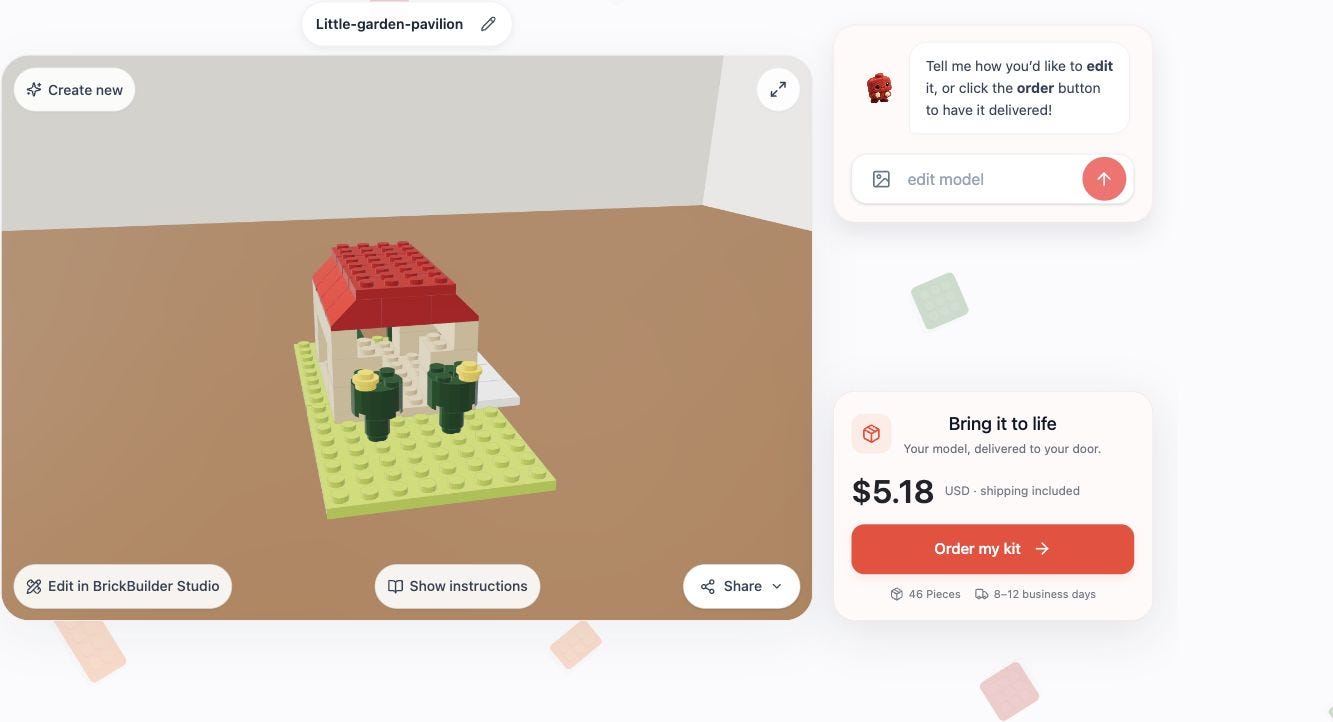
For the release overview, see AI for BrickLink Studio: meet BrickBuilder Studio.
1. Create a custom design in BrickBuilder
Open brickbuilder.ai and describe what you want to build. For a manageable first project, choose a small design with a clear shape. For example:
Create a small garden pavilion with four cream columns, a brown pitched roof, a bench, and two plants on a compact base. Keep the design simple and easy to inspect.
Submit the prompt and wait for the model preview. Generation time and results vary; AI creation and editing use your normal plan or credits. Rotate the finished model and look at it from several angles before deciding what to change.
If you already have a native Studio model, you can start with that instead. Open BrickBuilder’s Tools menu, choose an import option, and upload your .io, .ldr, or .mpd file.
2. Open the model in BrickBuilder Studio
Under the model preview, choose Edit in BrickBuilder Studio. Keep the original tab open while the transfer completes. The model opens at studio.brickbuilder.ai in a new tab.
If your browser blocks the new tab, allow the pop-up for this action. You can also export a LDraw file from BrickBuilder’s Tools menu, open BrickBuilder Studio yourself, and use Open project to select the file.
Choose Save to keep a .brickbuilder.json project copy before experimenting. The workspace also saves on the current device, but a downloaded project is the useful backup when changing browsers or computers.
3. Make manual brick edits
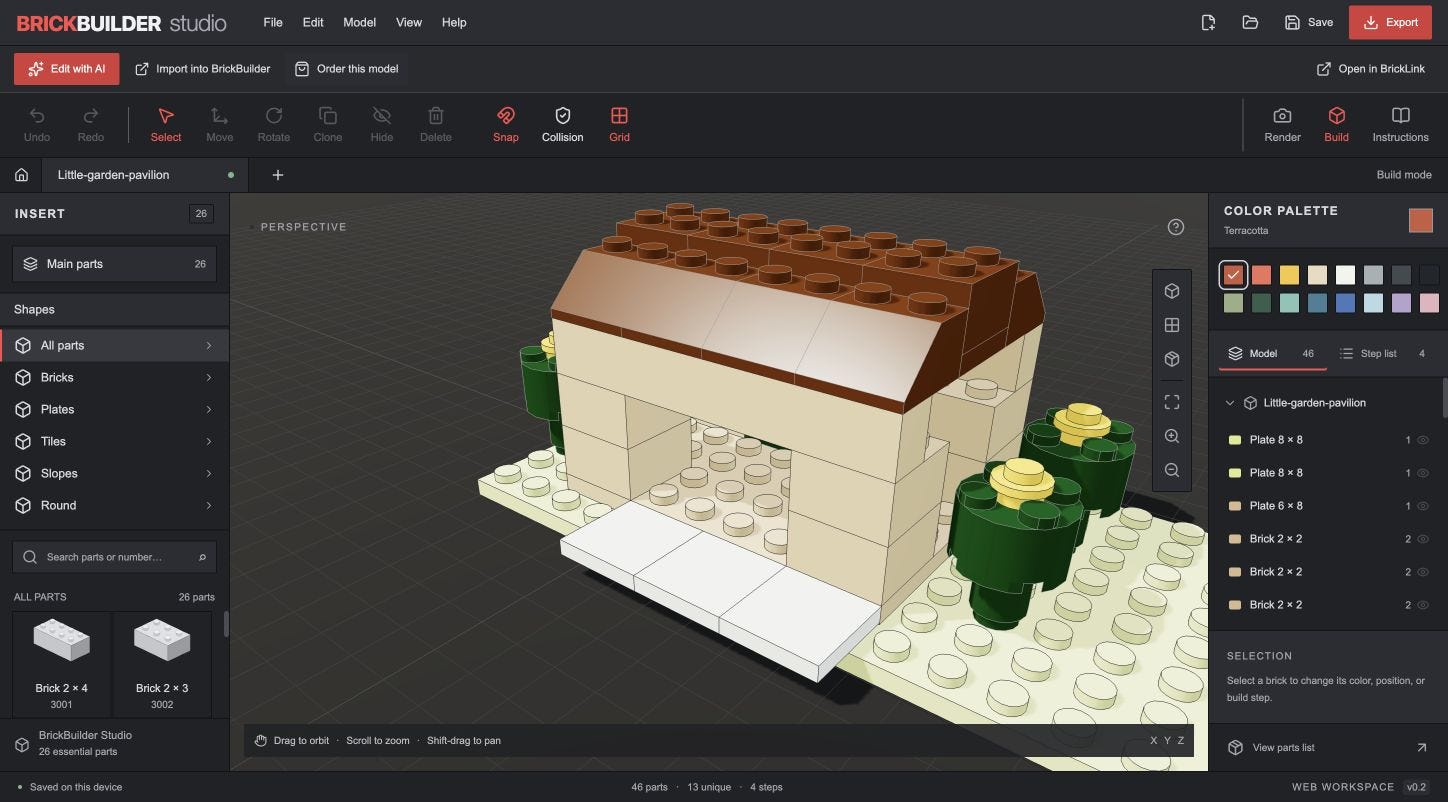
Click a brick in the canvas or select it from the model list. Try a small, visible edit first:
Choose a color in the palette to recolor the selected part.
Use the X, Y, and Z fields in the inspector to change its position.
Use Rotate for a quarter turn, or Clone to duplicate a selection.
Use Undo if the change is not what you wanted.
Drag to orbit, scroll to zoom, and use the top, front, or isometric view controls to inspect your work. Press F to fit the model in the viewport. You can add a part from the starter palette or move an existing one.
Imported models preserve their LDraw part references, colors, and transforms. Submodels are flattened into editable parts. Collision checks start off for imports because the editor currently uses approximate bounding boxes, rather than native Studio’s connector system. Inspect fit and structure yourself; a clean-looking preview is not a physical stability guarantee.
The first release supports up to 2,000 parts, 100 steps, and 16 MB imports. Missing preview geometry is reported and represented by a placeholder while its source data is retained. For direct .io editing here, first export .ldr or .mpd from native Studio.
4. Optionally continue in native BrickLink Studio
Choose Export → BrickLink Studio / LDraw. Save the .ldr file, then use File → Open in native BrickLink Studio. BrickLink’s own documentation lists LDraw among its supported import formats.
There is also an Open in BrickLink option. Its desktop link uses the installed BrickBuilder Studio wrapper to launch native Studio. Both desktop apps must be installed; dismiss any native startup prompts. If the link does not complete the handoff, use the .ldr download and File → Open route.
When you finish native edits, choose File → Export As → LDraw in BrickLink Studio. Its export documentation explains the supported formats. Open that .ldr or .mpd in BrickBuilder Studio, or upload it directly into BrickBuilder for the next step.
5. Bring the edited model back for AI changes
In BrickBuilder Studio, choose Edit with AI or Import into BrickBuilder. Both actions open the current model in the edit stage on BrickBuilder’s landing page.
Describe the change you want in the edit box. A specific request makes the intended revision easier to judge:
Change the pavilion roof to bright red. Keep the base, columns, plants, and overall dimensions. Use available parts and colors.
Choose Apply edit, wait for the new version, and inspect it. AI edits can change more than you intended, so compare the result with your saved original. You can send the new version back to BrickBuilder Studio for another manual pass.
6. Prepare the model and order its parts
Order this model in BrickBuilder Studio opens BrickBuilder’s /order page with the imported model. Imported models need an AI edit to validate available parts and colors before a kit price is available.
On that screen, choose Edit with AI to prepare parts. A useful request is: “Adapt this model to available parts and colors, preserving its appearance.” Review the result before continuing to the ordering controls on the completed model.
Check the quoted kit, delivery details, and final checkout total before placing the order. Neither importing a file nor clicking Order this model automatically purchases anything.
You can repeat this loop as often as your project needs: AI creation, manual changes, optional native Studio edits, then AI refinement and parts preparation. Start a custom design at BrickBuilder.ai and keep BrickBuilder Studio ready for the details you want to adjust by hand.
I’m Jake, the creator of BrickBuilder. AI and LEGO is an independent publication, not affiliated with BrickLink or the LEGO Group. AI assisted with research and drafting; interface steps and linked documentation were checked.
Originally published on AI and LEGO on Substack.